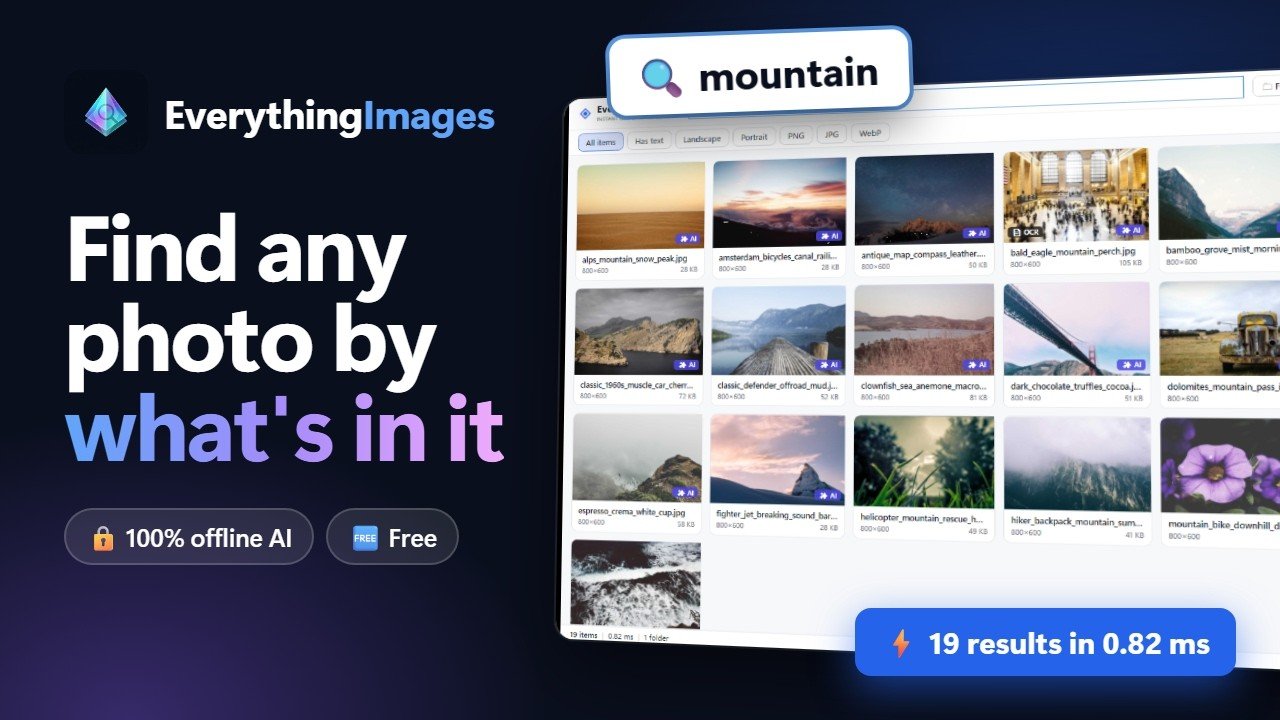
You know the picture exists. It’s the screenshot of that invoice, or the photo of the blue sofa you were thinking of buying. You just have no idea what it’s called or which folder it landed in, and Windows Search is no help, because the file is called IMG_4821.jpg.
EverythingImages is a free Windows app I built for exactly that moment. It reads through your image folders once, then finds any picture instantly, from what’s actually in it.
Four ways to find a picture
By name. The ordinary way, but instant, and it matches as you type.
By the text inside the image. This is the one that surprises people. Every screenshot, scanned bill, poster and meme gets read with Windows’ own text recognition. Search invoice and you get the pictures with the word “invoice” printed inside them, not just files named that way.
By colour. EverythingImages works out the main colours of every picture. Search blue and you get the blue ones. Useful when you remember how something looked and nothing else about it.
By AI description. This is the good part. A small AI model looks at each picture and writes a sentence about it: “A white SUV parked in front of a beige building with multiple windows.” That sentence becomes searchable. So you can search sofa, or mountains, or birthday cake, and find photos nobody ever labelled.
You can also filter to just the images containing text, or landscape ones, or PNGs, and switch between a grid of thumbnails and a detailed list.
Your pictures never leave your computer
This matters enough to say plainly: nothing is uploaded. There’s no account, no cloud, no subscription. The AI runs on your own machine, on your graphics card if you have one, or on the processor if you don’t. Your photos stay where they are, and the app works with the internet switched off.
It’s the reason I built it this way. Searching your own photos shouldn’t mean handing them to somebody else’s server.
Nothing gets installed
EverythingImages is portable. The download asks you where to put it and copies itself there. That’s the whole thing:
- No Start menu clutter, nothing in the registry, nothing in Apps & features.
- It keeps its index and settings in its own folder, next to the program.
- Put it on a USB stick and it travels with you, ready to use on another PC.
- To remove it, delete the folder. Nothing is left behind.
What you need
- Windows 10 (version 2004) or later, 64-bit.
- If your PC doesn’t have Microsoft’s .NET 10 Desktop Runtime, the setup offers to fetch it for you. You don’t have to hunt it down.
- For AI descriptions, the app downloads a small AI model once, about 320 MB, from inside its Options screen. Search by name, text and colour works straight away without it.
One heads-up: the download isn’t code-signed yet, so Windows SmartScreen may say “Windows protected your PC” the first time. Click More info → Run anyway. A signing certificate is a paid, per-year thing, and this app is free.
Free, and open source
EverythingImages is free, with no ads and no paid version. The complete source code is on GitHub under the MIT licence, so anyone can read exactly what it does with their files, or build it themselves.
If you try it, I’d genuinely like to know what you search for and what it fails to find. That’s what decides what gets built next.
Leave a Reply
You must be logged in to post a comment.