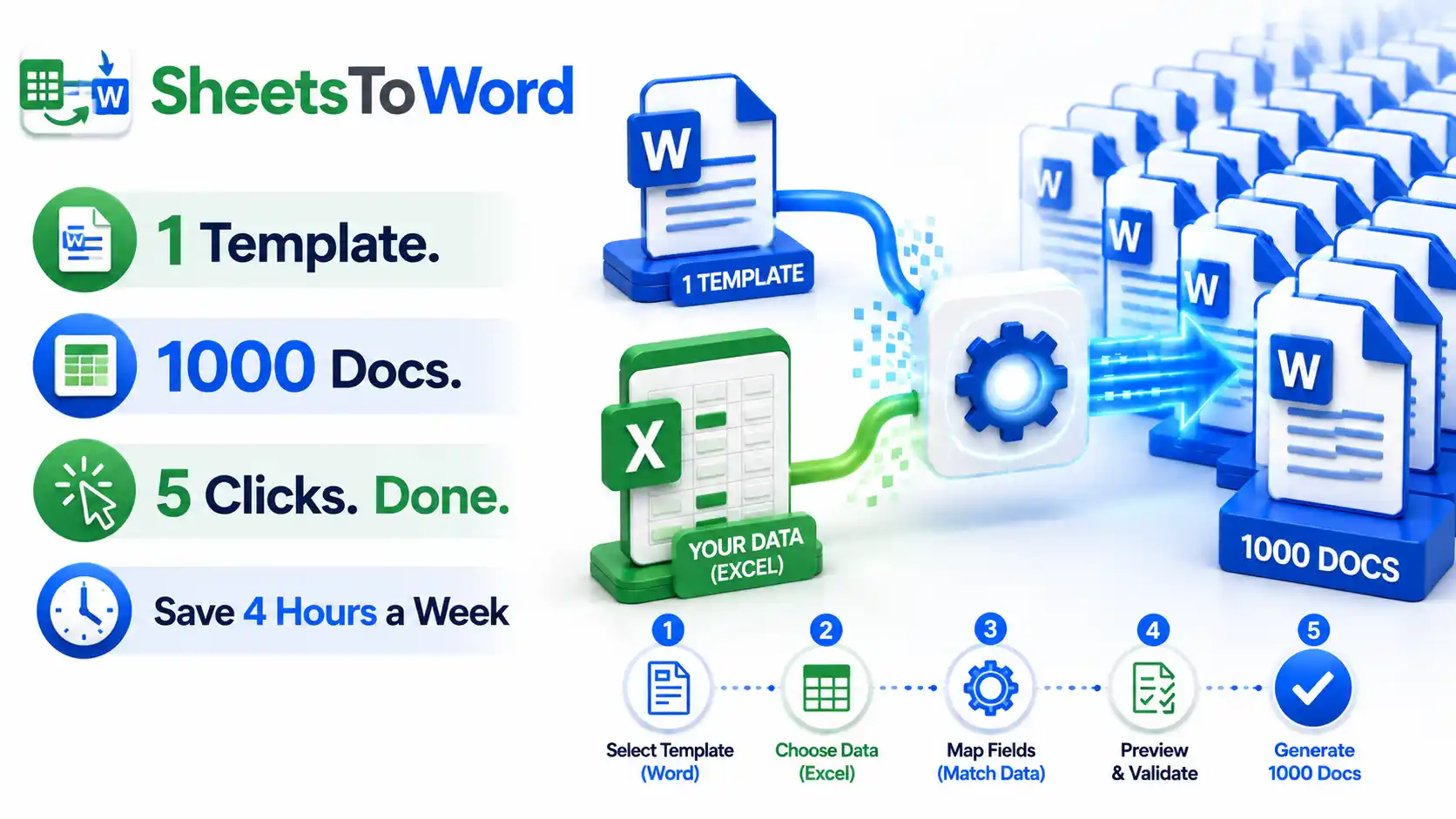
If you’ve ever sat at your desk copy-pasting names from a spreadsheet into a Word certificate template — one row at a time, fifty rows in — you know the special kind of exhaustion this work creates. It’s not hard. It’s not creative. It’s just long. And every cell you paste is another chance to typo someone’s name onto their own award.
SheetsToWord is a free desktop tool that does this job for you. Point it at your Word template, point it at your Excel sheet, and it spits out one finished document per row. No subscriptions. No cloud upload. No data leaving your machine.
The Problem with Doing This By Hand
A typical bulk-document workflow looks like this:
- Open the Word template.
- Find-and-replace
{{Name}}with the first person’s name. - Save As → type a new filename → save.
- Undo all changes.
- Repeat 49 more times.
For 50 certificates, that’s about an hour. For 500 invoices, it’s a full day. And if you spot a typo in the template halfway through, you start over.
Microsoft Word does have a built-in mail-merge feature, but anyone who’s tried it knows the truth: the UI is buried under three menus, the field syntax is fragile, and saving each row as a separate file (rather than one giant document) requires either a macro or a third-party add-in.
What SheetsToWord Does
SheetsToWord is a single-window desktop app that turns this workflow into four clicks:
- Pick your Word template — a
.docxfile with placeholders like{{Name}},{{Course}},{{Date}}. - Pick your Excel file — the data, one row per document.
- Map columns to placeholders — usually auto-detected.
- Click Generate.
Done. You get one Word document per row, named however you like, saved wherever you choose.
Features That Save Real Time
- Auto-detects template variables. Drop in your
.docxand SheetsToWord finds every{{placeholder}}inside it — no manual setup. - Smart column mapping. If your Excel column is called
Nameand your template uses{{Name}}, they’re matched automatically. Case-insensitive, whitespace-tolerant. - Custom file naming. Generate
John_Smith.docx,Jane_Doe.docxinstead ofDocument_1.docx,Document_2.docx. Pick any Excel column as the filename source. - Works fully offline. No account, no cloud, no internet required. Your data stays on your computer.
- Progress feedback. Live log and progress bar so you know exactly what’s happening.
- Threaded processing. The window stays responsive even while generating thousands of documents.
Who It’s For
- HR teams generating offer letters, NDAs, appointment letters.
- Schools and training centers printing certificates, transcripts, report cards.
- Small businesses sending invoices, quotations, receipts.
- Event organizers producing personalized badges, name cards, attendance letters.
- Legal and admin staff preparing standard agreements with client-specific fields.
If your job involves the words “can you just make one of these for each person on this list” — this tool is for you.
How to Use It (5-Minute Guide)
Step 1 — Prepare your Word template
Open Word and write your document as normal. Wherever you want data to appear, type a placeholder in double curly braces:
Dear {{Name}},
Congratulations on completing the {{Course}} course on {{Date}}.
Save as a normal .docx file.
Step 2 — Prepare your Excel sheet
The first row should be the column headers — and ideally these match your placeholder names:
| Name | Course | Date |
|---|---|---|
| Priya Sharma | Python Basics | 12 May 2026 |
| Arun Kumar | Data Analysis | 12 May 2026 |
| Lakshmi Iyer | Excel Mastery | 13 May 2026 |
Save as .xlsx.
Step 3 — Run SheetsToWord
Launch the app, browse for your Word template, browse for your Excel file, and choose an output folder. The mapping table auto-fills.
Step 4 — Pick the filename style
By default you get Document_1.docx, Document_2.docx, and so on. To get Priya_Sharma.docx instead, pick the Name column from the “Save Document As” dropdown.
Step 5 — Click Generate
Watch the progress bar fill. When it’s done, your output folder has one Word document per row in your spreadsheet.
What SheetsToWord Is Not
To be honest about scope: this is a focused tool, not a Swiss army knife.
- It doesn’t send emails. (Pair it with Outlook if you need that.)
- It doesn’t convert to PDF. (Word has a built-in export — or use a PDF printer.)
- It doesn’t fill PowerPoint or Excel templates. (Word only, for now.)
If you need any of those, tell me — they’re on the table for future versions.
Download
SheetsToWord runs on Windows. It’s a single .exe file — no installer, no Python required.
Drop it on your desktop, double-click, and you’re running. If your antivirus warns about an unsigned executable, that’s normal for indie tools — click “More info” → “Run anyway.”
Final Thought
I built SheetsToWord because I got tired of explaining mail merge to my colleagues. The built-in tool is too clunky to teach, and the SaaS alternatives want you to upload your HR data to their servers — which, for most workplaces, is a non-starter.
If you find this useful, share it with the colleague who’s currently doing this work by hand. They’ll thank you for the rest of the week.
Leave a Reply
You must be logged in to post a comment.