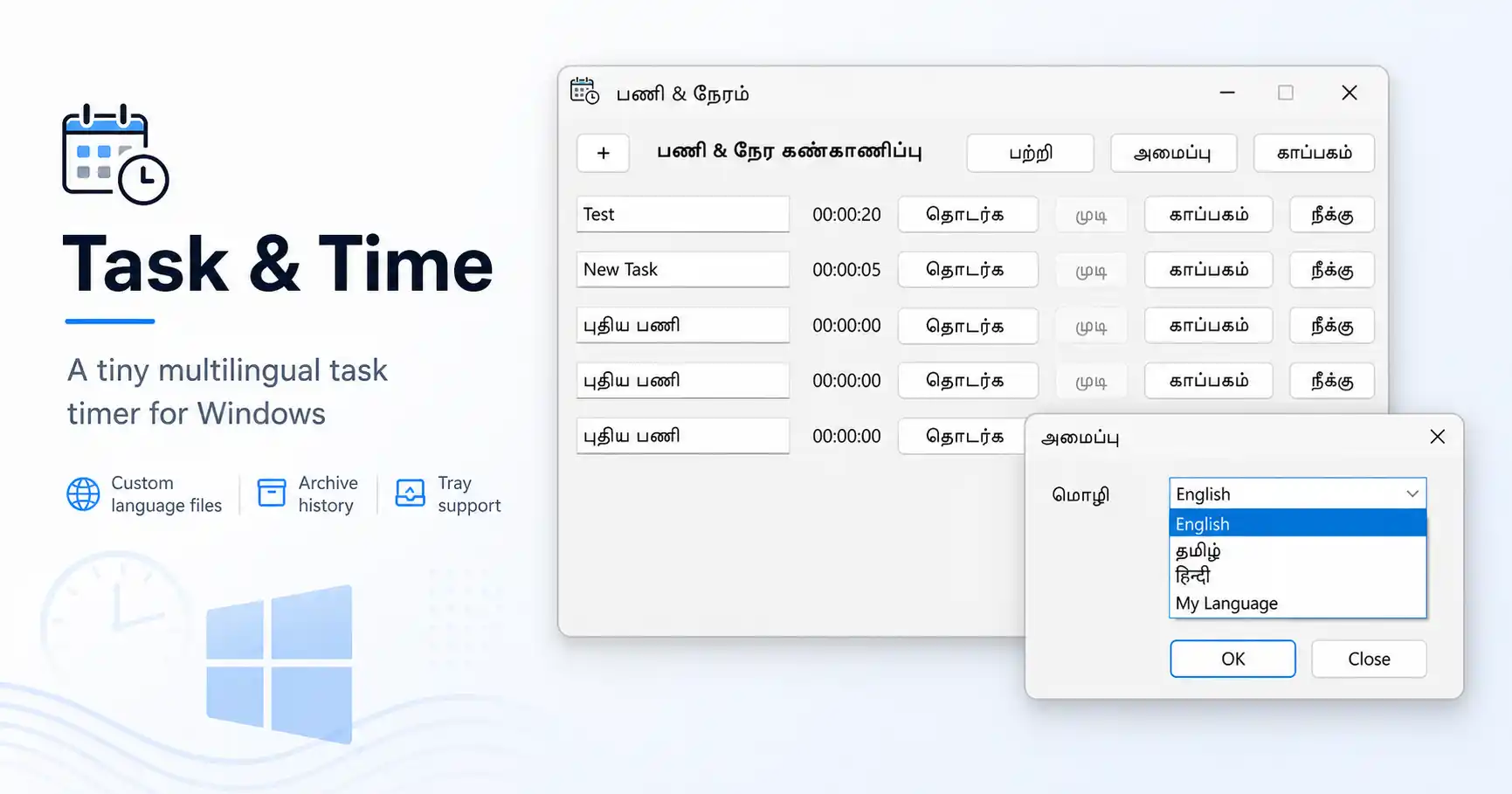
Most time-tracking apps want a lot from you. An account. A cloud sync. A subscription. A 200 MB installer. A browser tab that eats half your RAM.
Task & Time is the opposite of that. It is a single Windows program, about 3.5 MB on disk, that does one thing well: it tracks how much time you spend on the tasks you care about. You double-click it, you start a timer, you get on with your day.
That’s the whole pitch. Below is what it actually does.
A 3.5 MB executable, in 2026
https://drive.google.com/file/d/1Vx_6GO5nlnDfZ8F8GeiPJZSscDLJvDIz/view?usp=sharing
Let’s start with the size, because that part still surprises people.
The entire app — UI, timers, multi-language support, system tray integration, archive viewer, data persistence — is one TaskAndTime.exe file that weighs in at roughly 3.5 megabytes. No installer. No “redistributables.” No .NET runtime to chase down. No 400 MB Electron bundle quietly shipping an entire web browser just so it can show you a list of tasks.
For context:
- A single photo from your phone is usually bigger than this app.
- One minute of 4K video is around 100× this size.
- A typical “lightweight” desktop app today ships at 80–250 MB. Task & Time is roughly 1/50th of that.
It starts instantly because there’s barely anything to load. It runs happily on a laptop from a decade ago. You can drop it on a USB stick, copy it to a new machine, and it just works — no install step at all.
What it actually does
The main window is a simple, scrollable list of tasks. For each task you get:
- A name you can type and edit freely.
- A live timer showing hours, minutes, and seconds.
- Start / Pause / Resume / End — the same button changes meaning depending on what the task is doing, so the row never feels cluttered.
- Archive to move a finished task into your history.
- Delete to throw it away (it will gently ask if the task is still running).
Click + New Task at the top to add as many rows as you want. There’s no artificial cap.
It keeps tracking, even when the window is gone
This is the bit people quietly fall in love with.
When you close the window, the app doesn’t quit. It slips down into the Windows system tray (next to the clock) and keeps running. If any task is currently being timed, it pops up a small notification so you don’t forget you left a timer going.
- Double-click the tray icon to bring the window back.
- Right-click for Show or Quit.
- Every so often, while at least one task is running, you’ll get a friendly balloon listing the running tasks and how long they’ve been at it.
Even better: if you do quit, running tasks are remembered. Next time you open the app, those tasks pick up right where they left off and the clock keeps climbing. You can reboot your PC and your timers survive.
An archive, not a complete deletion
When you finish a task, you can hit Archive to file it away. The main view stays clean, but nothing is lost.
Click View Archive to see the full history: every archived task name, total time spent, and the date and time it was archived — in a clean monospace list you can scroll through. It’s a quiet record of where your time actually went.
English, தமிழ் (Tamil), and हिन्दी (Hindi)
Open Settings and you can switch the entire interface between three languages:
- English
- Tamil (தமிழ்)
- Hindi (हिन्दी)
Every button, menu, dialog, and notification re-labels itself on the fly. The default task name even translates (“New Task” / “புதிய பணி” / “नया कार्य”). The choice is remembered between sessions.
This is rare in a small utility. Most tools this size are English-only.
Your data is yours, and it lives next to the app
Task & Time saves three small text files right next to the executable:
TaskAndTime.dat— your current tasks and their elapsed times.TaskAndTime.archive— your archived task history.TaskAndTime.ini— your language preference.
That’s it. No hidden database in AppData. No cloud sync you didn’t ask for. No telemetry. Want to back it up? Copy the folder. Want to move it to another PC? Copy the folder. Want to read or edit it in Notepad? Go ahead — it’s plain text with | as a separator.
If you’re privacy-minded or just tired of apps phoning home, this is genuinely refreshing.
Who it’s for
- Freelancers who bill by the hour and don’t want a Toggl subscription.
- Students trying to be honest about how long that “20-minute” study session really lasted.
- Writers, coders, designers who want to time-box deep work without ceremony.
- Anyone who has ever thought, “I just want a simple stopwatch for the three things I’m working on today” — and discovered the App Store will sell them a thousand things, none of which are that.
What it doesn’t do (on purpose)
It doesn’t have:
- An account system.
- Cloud sync.
- Reports, charts, exports to PDF, Pomodoro buzzers, integrations with twelve other SaaS tools.
- Ads. Upsells. A pro tier.
That’s not a limitation. That’s the design. The whole point of a 3.5 MB app is that it stops where it should stop.
The credit
The About box reads: “Vibe Coded by Rajeshkannan MJ” — and the Tamil benediction திருச்சிற்றம்பலம் / அன்பே சிவம் (roughly, “the sacred hall / love is divine”). A small, personal touch in a small, personal tool.
Try it
Download from the following link
https://drive.google.com/file/d/1Vx_6GO5nlnDfZ8F8GeiPJZSscDLJvDIz/view?usp=sharing
Copy TaskAndTime.exe to a folder. Double-click. Type a task name. Hit Start.
That’s the whole onboarding.
In a world where everything wants to be a platform, it’s nice when something is just a program.
Leave a Reply
You must be logged in to post a comment.