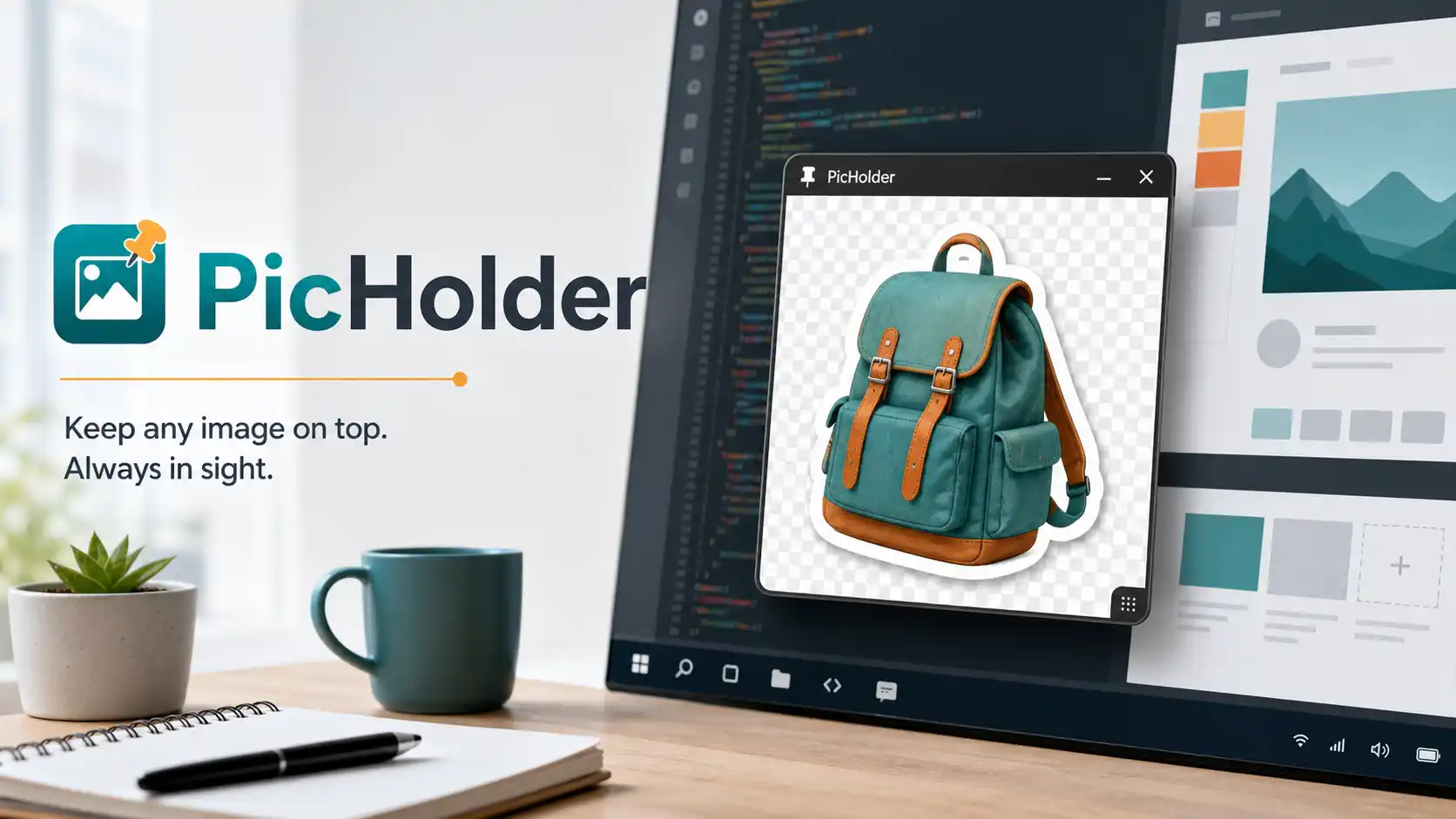
PicHolder is a small Windows utility built for one useful job: keeping an image floating on your screen while you work in other apps. Instead of switching between windows, opening a full image editor, or constantly dragging a reference file back into view, you can drop an image into PicHolder and keep it visible above everything else.
It is especially helpful when you need a visual reference nearby but do not want a heavy tool getting in the way.
What PicHolder Does
PicHolder lets you drag and drop an image onto a small window. The app resizes itself to match the image, then lets you keep that image on top of your desktop.
You can use it with common image formats like PNG, JPG, JPEG, BMP, GIF, ICO, TIFF, WMF, and EMF. Animated GIFs are supported too, which makes it useful for quick motion references or small visual reminders.
For transparent PNG files, PicHolder can also shape the window around the visible part of the image. That means stickers, cutouts, icons, and transparent references can sit cleanly on your screen without a big rectangular background.
Why a Floating Image Viewer Is Useful
Most image viewers are built for browsing photos. PicHolder is different. It is built for keeping one image available while you are doing something else.
Designers can keep a logo, mockup, color reference, or UI screenshot beside their design tool. Developers can pin a layout reference while coding a frontend. Artists can keep a pose, expression, texture, or thumbnail visible while drawing. Writers and researchers can keep a visual note open while working in a document.
Because PicHolder stays lightweight and focused, it avoids the clutter of a full editor. You get the image, the position you want, and a small right-click menu for the controls that matter.
Best Uses for PicHolder
PicHolder works well for:
- Keeping reference images on top while designing or drawing
- Pinning screenshots while fixing UI layouts
- Viewing transparent PNG stickers without a background
- Keeping a moodboard item visible during creative work
- Comparing an image against a webpage, design, or app window
- Displaying animated GIFs as quick motion references
- Holding visual notes during meetings or tutorials
- Keeping icons, textures, or color samples nearby
It is also useful for anyone working with multiple windows. If you regularly switch back and forth just to check an image, PicHolder saves time by keeping that image where your eyes already are.
Useful Controls Without Extra Clutter
PicHolder includes a right-click menu with practical options:
- Always on top keeps the image above other windows.
- Hide title bar gives the image a cleaner, borderless look.
- Transparent Shape makes supported transparent PNGs follow their visible shape.
- Lock Position prevents accidental movement.
- Set Background Color changes the window background.
- Hide to Tray keeps the app available without leaving it on screen.
- Quit closes the app.
These controls make PicHolder flexible without turning it into a complicated image manager.
A Handy Tool for Creative and Technical Work
PicHolder is useful because it respects your workflow. It does not ask you to import files into a library, create a project, or learn a new interface. You drag an image in, place it where you want, and keep working.
That makes it a good fit for frontend development, digital art, UI design, video editing notes, documentation work, and everyday desktop reference tasks.
If you need a tiny floating image viewer for Windows, PicHolder gives you a fast and distraction-free way to keep the picture you need exactly where you need it.
Download and Try PicHolder
PicHolder is free software released under the MIT License. It is a small Windows app for anyone who wants a simple way to pin images, reference screenshots, transparent PNGs, and animated GIFs on the desktop.
Use PicHolder when you want your image to stay visible, your workspace to stay clean, and your focus to stay on the work.
https://drive.google.com/file/d/1HFYQ4W27MKq8xTsdQiD4ZCUCFSJGsHtf/view?usp=sharing
Leave a Reply
You must be logged in to post a comment.