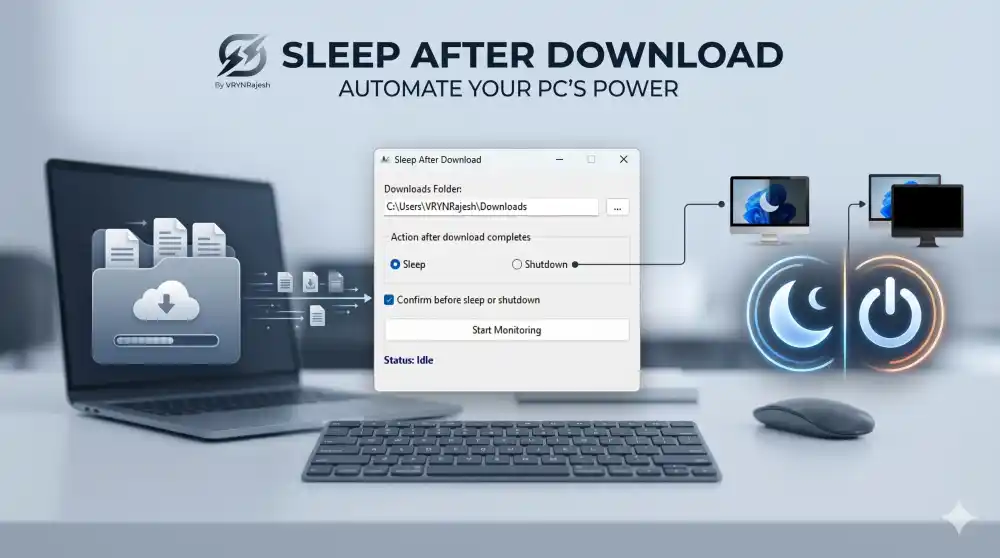
Big downloads are still a thing. Game patches, ISO images, video projects, model weights, AI training files — they take time, and most of the time you’d rather not sit there and watch the progress bar.
I built Sleep After Download to fix that. Start your download, tell the app what to do when it finishes, walk away. When the download completes, your PC sleeps or shuts down on its own.
It’s free. No ads, no trackers, no account, no nag screens. Download it, run it, done.
What it does
You point it at a folder (your Downloads folder by default). It watches for the temporary files browsers create while a download is in progress:
.crdownload— Chrome, Edge, Brave, and any Chromium-based browser.part— Firefox
When those files are gone, the download is finished. The app then triggers your chosen action: Sleep or Shutdown.
Features
- Works with Chrome, Edge, Brave, and Firefox out of the box
- Choose Sleep or Shutdown as the action
- Optional confirmation prompt before it acts — in case you walked back to your desk just in time
- Smart start: it only begins monitoring if a download is actually in progress, so it can’t accidentally sleep your PC the moment you open it
- Lives in the system tray — close the window and it keeps watching quietly
- Right-click the tray icon to Show or Quit
- Native Windows app, no .NET, no Java, no runtime to install
- 32-bit and 64-bit builds available — runs on any Windows 10 or Windows 11 machine
- Tiny: a single executable, a few megabytes
How to use it
- Start your download in your browser.
- Open Sleep After Download.
- Confirm the folder it’s watching, or pick a different one.
- Choose Sleep or Shutdown.
- Click Start Monitoring.
That’s it. You can close the window — it’ll keep running in the system tray. When the download finishes, it does the thing.
Safety
The app uses Windows’ standard sleep and shutdown calls — nothing exotic. By default it asks for confirmation before acting, so if you’re back at your desk in time you can cancel. If you’d rather it act silently (overnight downloads, for example), just uncheck the Confirm before sleep or shutdown box.
If you ever want to abort while monitoring is running, open the window from the tray and click Stop Monitoring.
Download
Download Sleep After Download (free) ← link coming soon, I’ll update this post once the binary is live
Both 64-bit and 32-bit builds will be available. Pick whichever matches your Windows install — if in doubt, the 32-bit build runs on everything.
Why free?
Because it’s a small, useful tool, and the world doesn’t need another paid utility for something this simple. Share it with anyone who’d find it handy — that’s the whole point of putting it out there.
Leave a Reply
You must be logged in to post a comment.