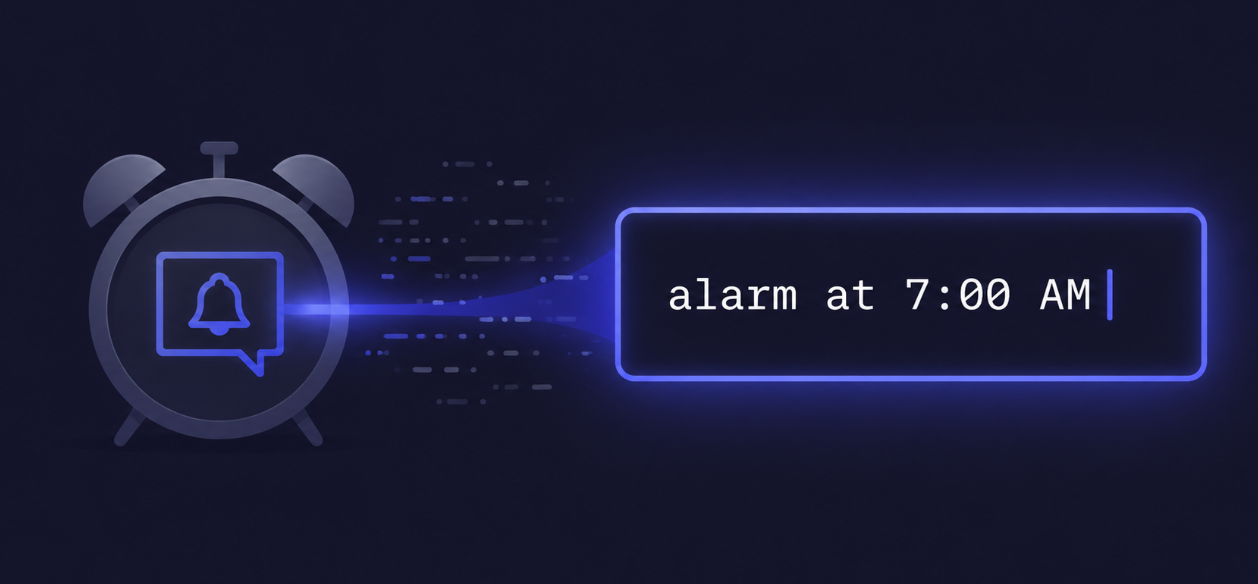
I built a Windows alarm app for myself, and somewhere along the way it got polished enough that it deserves to be shared. It’s free, it’s a single 72 MB executable, and it does exactly one thing well: you type what you want, and it sets an alarm.
No dropdowns. No date pickers. No four-screen wizard to schedule a recurring reminder. Just a text box and a parser that understands what a developer would naturally type.
The pitch in one screenshot’s worth of words
Open the app. There’s a single input field. Type any of these:
alarm at 7:00 AM
remind me in 15 minutes
alarm every 30 minutes
alarm at 9 AM 12 PM 3 PM
alarm at 9:00 AM on weekdays
wake me on weekends at 10 AM
alarm tomorrow at 8 AM
alarm at 9 AM daily label "Standup"
alarm at 5 PM on weekdays label "Leave office"
remind me in 15 mins snooze 5 mins max 3
Hit Enter. Done. The alarm shows up in the list with its next trigger time, and the app keeps running quietly in your system tray.
That’s it. That’s the whole product.
Why another alarm app?
Because every alarm app I’ve used assumes I’m a normal person with a normal life and normal needs. I’m a developer. I want to:
- Set a reminder to check the build in 15 minutes without picking a time on a clock face.
- Schedule a standup at 9 AM on weekdays without three taps and a confirmation modal.
- Get a nudge every 30 minutes during a focused session without configuring a new “habit.”
- Have an alarm sit in my system tray instead of being a phone notification I’ll silence and forget.
The Windows built-in Clock app, browser tabs, calendar reminders, and even most “productivity” apps fail at one of those. I wanted something where the cost of setting an alarm was typing one sentence.
How it works for users
Install
- Download
RajeshAlarm-v1.0-win-x64.zip. - Unzip. There’s one file:
RajeshAlarm.exe. - Double-click.
That’s the install. No setup wizard, no admin prompt, no .NET runtime to install. The first launch will trigger Windows SmartScreen (“Windows protected your PC”) because the binary isn’t code-signed — click More info → Run anyway. Normal for unsigned freeware.
System requirements: Windows 10 (version 1809 or newer) or Windows 11, 64-bit. Won’t run on 32-bit Windows, ARM64 Windows, or anything older than Windows 10 1809.
The command syntax
The grammar is small and forgiving. You’re never wrong about word order — these all work:
| You type | What happens |
|---|---|
alarm at 7:00 AM | Fires once at 7:00 AM today (or tomorrow if it’s already past). |
remind me in 15 minutes | One-shot, 15 minutes from now. |
alarm in 2 hours | Same idea, longer span. |
alarm every 30 minutes | Repeats forever every 30 minutes. |
alarm at 9 AM 12 PM 3 PM | Three times today. Multi-time in one command. |
alarm at 9:00 AM on weekdays | Mon–Fri only, every week. |
wake me on weekends at 10 AM | Sat & Sun. |
alarm tomorrow at 8 AM | One-shot, tomorrow. |
alarm at 5 PM label "Meeting" | Labels surface in the alarm list and the notification. |
alarm at 7 AM snooze 10 mins | Adds a snooze duration. |
remind me in 15 mins snooze 5 mins max 3 | Snooze cap so it can’t bug you forever. |
The app has live syntax suggestions as you type, so you don’t need to memorize the grammar — start typing alarm and it offers completions.
Tray behavior
Closing the window doesn’t quit the app — it minimizes to the system tray. Right-click the tray icon for Show, Check Now, Pause Monitoring, and Quit. Double-click brings the window back. When an alarm fires you get a tray balloon notification and the configured sound plays.
Custom sounds
Settings → Browse lets you point at any .mp3, .wav, .wma, or .m4a. Leave it empty to use the default OS beep. There’s a Test button so you don’t have to set an alarm for one minute from now to hear what it sounds like (we’ve all done that).
How it works inside
For the developers in the audience: this is a small, clean .NET 10 WPF app with classic MVVM. Here’s the file map:
RajeshAlarm/
├── App.xaml(.cs)                  // WPF entry
├── MainWindow.xaml(.cs)           // single-window UI + system tray (WinForms NotifyIcon)
├── ViewModels/
│   └── MainViewModel.cs           // INotifyPropertyChanged, RelayCommand, polling timer
├── Parser/
│   ├── AlarmParser.cs             // recursive-descent DSL parser
│   └── AlarmResolver.cs           // resolves parsed alarms to next-trigger DateTimes
├── Scheduler/
│   └── AlarmScheduler.cs          // computes which alarms are due in a ±45s window
├── Storage/
│   ├── AlarmStore.cs              // JSON file in %APPDATA%
│   └── AppSettings.cs             // sound path & other prefs
└── Models/
    └── AlarmModels.cs             // ParsedAlarm, StoredAlarm, TriggerInfo
A few design choices worth calling out, because they’re the kind of thing I usually want to see explained when I read someone else’s blog post:
1. The parser is a hand-written recursive-descent walker, not regex
I tried regex first. It worked for alarm at 7 AM, then collapsed the moment I added alarm at 9 AM 12 PM 3 PM on weekdays label "Standup". Switching to a tokenizer + small recursive-descent parser made the grammar honest:
ParseAction()      → "alarm" | "remind" | "wake"
ParseTimeSpec()    → time | "every" interval | "in" duration
ParseRecurrence()  → "daily" | "on weekdays" | "on weekends" | "tomorrow"
ParseSnooze()      → "snooze" duration ["max" N]
ParseLabel()       → "label" (quoted-string | word)
Every clause is a method. Adding a new keyword is a switch case, not a regex bake-off. The whole parser is ~300 lines and reads top-to-bottom.
2. Scheduler is a pull, not a push
I don’t schedule a System.Threading.Timer per alarm. Instead a single DispatcherTimer ticks every 30 seconds, and AlarmScheduler.DueNow() asks: of all active alarms, which ones land in a ±45-second window around now?
return store.ListActive()
    .Select(a => new { Alarm = a, Next = ComputeNext(a, now) })
    .Where(x => x.Next.HasValue
                && x.Next.Value >= windowStart
                && x.Next.Value <= windowEnd)
    ...
Why pull instead of push?
- The clock can drift, get suspended, or be wrong — sleep/resume cycles routinely murder per-alarm timers. A polling scheduler just keeps working.
- Computing “next trigger” from a
StoredAlarmis pure — no hidden state, easy to test. - The 30-second poll is invisibly cheap. The 45-second tolerance window guarantees we never miss a trigger between ticks.
3. Storage is a JSON file, not SQLite
Total alarms a person has: maybe 20. Total alarms a power user has: maybe 100. SQLite would be over-engineering. A pretty-printed JSON file in %APPDATA%\RajeshAlarm\ lets you cat it, hand-edit it, sync it via Dropbox, or grep it. When the data is small and the access pattern is “load on start, save on change,” files win.
4. WPF in 2026, on .NET 10
I know. The cool kids are on Avalonia or MAUI or Tauri. WPF is supposedly old. I picked it anyway because:
- It’s still the fastest way to ship a polished native Windows app.
dotnet publish -r win-x64 --self-contained -p:PublishSingleFile=trueproduces a single ~72 MB exe that runs on any modern Windows machine with zero install steps for the user.- The data binding story is still excellent — the entire UI is a
MainWindow.xamlfile binding to one ViewModel. - I wanted to ship, not to evaluate three frameworks.
5. Tray icon is WinForms inside a WPF app
WPF doesn’t have a built-in NotifyIcon. Rather than pull in a third-party library, the app references Microsoft.WindowsDesktop.App with both <UseWPF>true</UseWPF> and <UseWindowsForms>true</UseWindowsForms>, and uses System.Windows.Forms.NotifyIcon directly. It’s pragmatic, ugly in its mix-of-namespaces (using MessageBox = System.Windows.MessageBox;), and it works.
The icon itself is loaded from the same .ico resource the executable uses, via Application.GetResourceStream:
var uri = new Uri("pack://application:,,,/rajeshalarm.ico", UriKind.Absolute);
using var stream = Application.GetResourceStream(uri).Stream;
return new Icon(stream);
So the title bar, the taskbar, the Alt+Tab list, and the system tray all use the same artwork. One source of truth.
Distribution
The whole thing ships as one zip:
- One file inside:
RajeshAlarm.exe(~72 MB) - Self-contained: includes the .NET 10 runtime, no install needed
- Windows 10 (1809+) and Windows 11, x64 — that’s the supported matrix
The reason the exe is fat: it bundles the entire WPF runtime so the user doesn’t have to. With compression and single-file extraction, this is a one-time cost they pay once on download — runtime startup is normal-WPF-fast.
What’s next
Honestly, not much. The whole app is a tool I built for myself, and it does what I need. If people use it and ask for things, I’ll add them. Things I’m tempted by:
- A CLI mode (
RajeshAlarm.exe "alarm at 7 AM"with no UI) so it can be wired into scripts. - Import/export of alarms.
- Linux & macOS — would need an Avalonia rewrite, which is a much bigger commitment than I can promise.
If you build something on top of this, or fork it, or just use it for a week and have notes, I want to hear.
Download
Download RajeshAlarm v1.0 (Windows x64, ~67 MB zip)
Unzip, run RajeshAlarm.exe, type alarm in 5 minutes, watch it work.
It’s free. It will stay free. It’s vibecoded by Rajeshkannan MJ, with gratitude.
திருச்சிற்றம்பலம் அன்பே சிவம்
Leave a Reply
You must be logged in to post a comment.