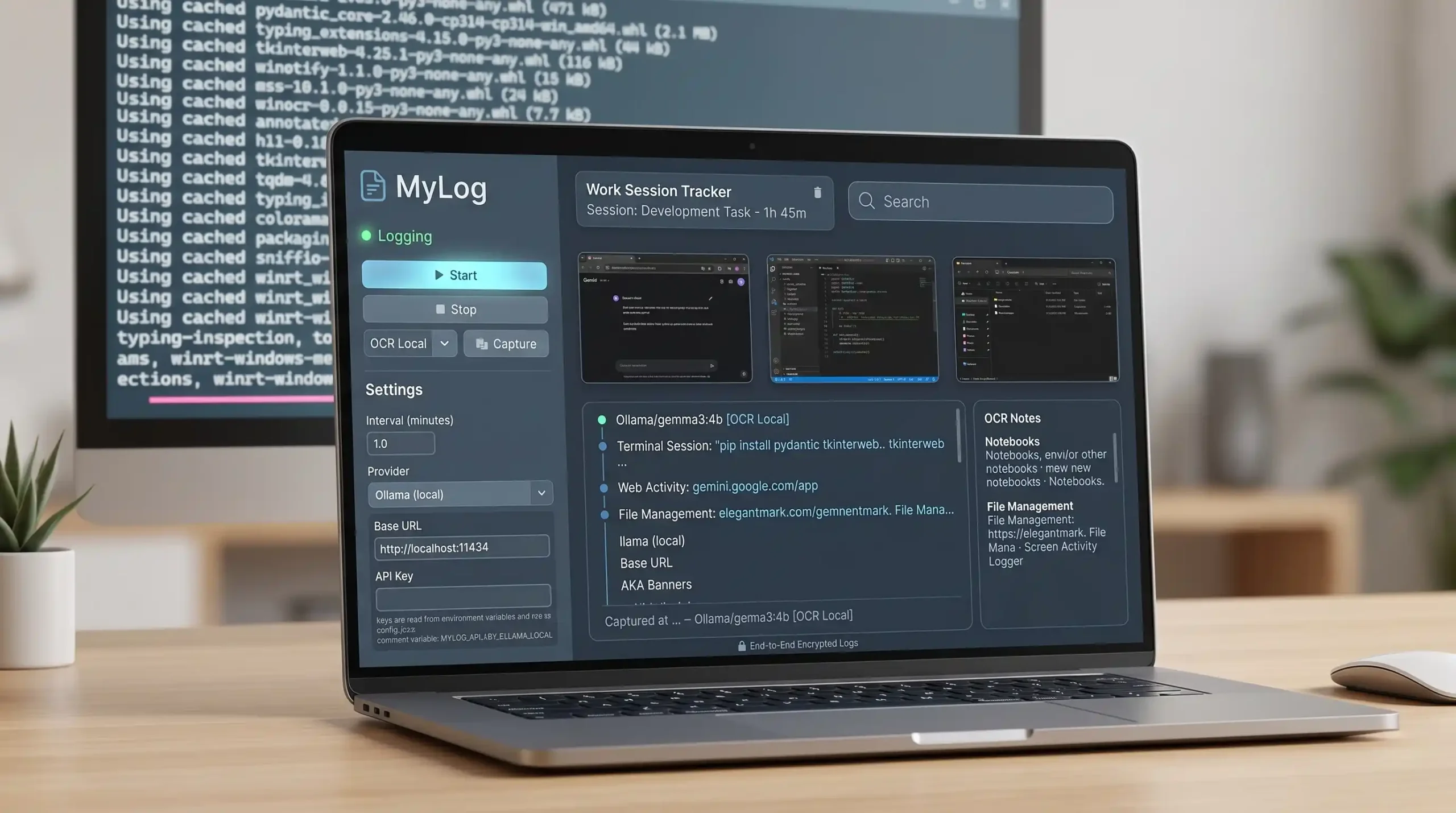
If you have ever ended a busy workday and struggled to remember exactly what you worked on, MyLog is built for you.
MyLog is a lightweight Windows desktop app that automatically captures your screen at selected intervals, analyzes what is visible, and creates a structured activity log you can review later. Whether you are a developer, student, freelancer, remote worker, or general computer user, it gives you an easy way to track your digital workflow and revisit your day with more clarity.
For anyone who wants a practical screen activity tracker without unnecessary complexity, MyLog offers a simple and useful solution.
What Is MyLog?
MyLog is a screen activity logging tool for Windows. It periodically takes screenshots of your screen, processes them using OCR or AI-based analysis, and stores the results in a searchable daily log.
Instead of relying on memory, you get a timeline of what was happening on your screen throughout the day. This can be incredibly useful when reviewing work sessions, tracking progress, reconstructing tasks, or understanding your computer usage patterns.
Why Use a Screen Activity Logger?
Modern work happens across many apps at once. A typical day may involve switching between:
- VS Code or another code editor
- Browser tabs
- Terminals
- Chat apps
- Notes
- Documents
- File Explorer
- Project management tools
By the end of the day, it is easy to lose track of what happened and when.
A screen activity logger like MyLog helps by creating a simple historical record of your work. You can use it to:
- Review what you worked on during the day
- Track study sessions or learning time
- Revisit interrupted tasks
- Understand your productivity patterns
- Build a rough personal work journal
- Support documentation, timesheets, or progress summaries
Key Features of MyLog
MyLog is designed to stay practical and easy to use. Some of its core features include:
Automatic Screenshot Logging
Capture your screen at a configurable interval and create a time-based record of your activity.
AI-Powered Screen Description
Generate readable descriptions of what is on screen so logs are easier to review.
OCR Support
Extract visible text from screenshots for text-focused logging and summaries.
Local or Cloud Model Support
Use local models through Ollama or connect to OpenAI-compatible providers depending on your preference.
Searchable Daily Logs
Review entries by date and search through saved descriptions to find specific sessions or tasks.
Optional Screenshot Saving
Choose whether to keep screenshots after analysis or only store the text-based log.
Exportable HTML Logs
Export daily logs into HTML format for easy browsing and sharing.
Simple Desktop Interface
Start, stop, configure, and review logs through a clean Windows desktop UI.
Who Is MyLog For?
One of the best things about MyLog is that it is not limited to one type of user.
For Developers
Developers can use MyLog to review coding sessions, track debugging work, remember context switches, and revisit what tools, windows, and workflows were active during a session.
It is especially useful for:
- coding session review
- debugging history
- documenting progress
- recovering context after interruptions
- understanding work habits
For Students
Students can use it to track study sessions, reading time, online research, and computer-based coursework.
For Freelancers and Remote Workers
Freelancers often need to remember what they worked on throughout the day. MyLog can help create a rough timeline that supports productivity reviews or client reporting.
For Everyday Computer Users
Even general users may find value in understanding how they spend time on the computer, what they were working on, and how their workflow changes over time.
How MyLog Works
At a high level, MyLog follows a simple process:
- It captures your screen at your chosen interval.
- It analyzes the screenshot using OCR or a vision model.
- It stores the result as a timestamped log entry.
- It lets you review those entries in a searchable interface.
This creates a lightweight digital memory of your computer activity.
Privacy and Safety Considerations
Because MyLog captures screenshots, privacy matters.
Users should always remember that screen captures may include sensitive or personal information such as messages, credentials, documents, company data, or private browsing content.
MyLog includes a few practical safeguards and design choices:
- API keys are not stored in config.json
- local OCR is supported
- local model support is available through Ollama
- screenshot retention is optional
- release packages exclude runtime data like logs, config, and database files
If you choose to use a cloud AI provider, data shown on screen may be transmitted to that provider depending on your configuration. Always review your setup before using the app with sensitive, confidential, or regulated data.
Benefits of Using MyLog
There are many tools that track time, but fewer tools help you remember actual on-screen activity.
MyLog can be valuable because it helps bridge that gap. Instead of just telling you that time passed, it gives you a clearer picture of what was happening during that time.
Some of the practical benefits include:
- better session recall
- easier work journaling
- improved personal productivity review
- more accurate task reconstruction
- better continuity when resuming paused work
- a clearer view of multitasking and context switching
Why MyLog Is Useful for Developers
Developers often juggle multiple tools and tasks within a short period of time. You may start in a terminal, move into an editor, switch to documentation, test in a browser, open a database viewer, and jump into chat or issue tracking.
Hours later, reconstructing that work can be difficult.
MyLog helps developers answer questions like:
- What was I working on before I got interrupted?
- When did I switch from coding to debugging?
- What window or tool was open during that session?
- What part of the project was I reviewing earlier?
That makes it useful not only for productivity, but also for continuity, documentation, and personal workflow analysis.
How to Get Started with MyLog
Getting started is straightforward.
Installation Steps
- Download the release package.
- Extract the zip file.
- Make sure Python is installed on Windows and available in PATH.
- Open the extracted folder.
- Run start.bat.
- Configure your provider, interval, and logging preferences.
- Start logging.
You can also run a one-time capture first to make sure your setup is working correctly.
Best Use Cases for MyLog
MyLog can be especially helpful in the following situations:
- tracking programming sessions
- documenting research work
- creating study logs
- reviewing writing or editing sessions
- understanding daily digital habits
- maintaining a lightweight productivity journal
- resuming unfinished work with better context
Final Thoughts
MyLog is a simple but practical tool for anyone who wants to better understand and review their computer activity.
It is especially helpful for developers and power users, but its usefulness extends well beyond programming. If your work or study happens on a screen, having a searchable record of that activity can make it easier to stay organized, remember progress, and reflect on how your time is spent.
If you are looking for a lightweight screen activity logger for Windows that is flexible, understandable, and useful in real day-to-day work, MyLog is worth trying.
Download MyLog
Download the latest release, extract the package, and run start.bat to begin.
You can download the code from my Google Drive link https://drive.google.com/file/d/11uPiiOUPpXiznSby0ItCyxwiw9NwYmXC/view?usp=sharing
Created by Rajeshkannan MJ
அன்பே சிவம்
திருச்சிற்றம்பலம்
Disclaimer
MyLog captures screenshots and may process visible screen content using local OCR, local AI models, or third-party AI providers based on your settings. Please avoid using it with sensitive or confidential information unless you fully understand and accept the privacy and security implications. By downloading or using MyLog, you are responsible for your own configuration, data handling, and compliance requirements.
My Experience with Gemma 4 E4B – Privacy First: Running AI Locally
After building out the core features of this project, integrating the gemma4:e4b model has proven to be a game-changer. The biggest advantage is complete privacy: everything runs locally on your own hardware, keeping your Python scripts and slide content secure. I’ve thrown multiple complex options and workflows at it during testing, and the performance has been exceptionally smooth and reliable across the board. (As on April 15th, 2026)
Leave a Reply
You must be logged in to post a comment.