We’ve all been there: you need page 7 of a 200-page PDF as a crisp image for a slide deck, a thumbnail pipeline, or an OCR pre-processing step. You fire up a heavyweight editor, wait for it to load, hunt for the export menu, wrestle with quality settings… and then repeat for the next file.
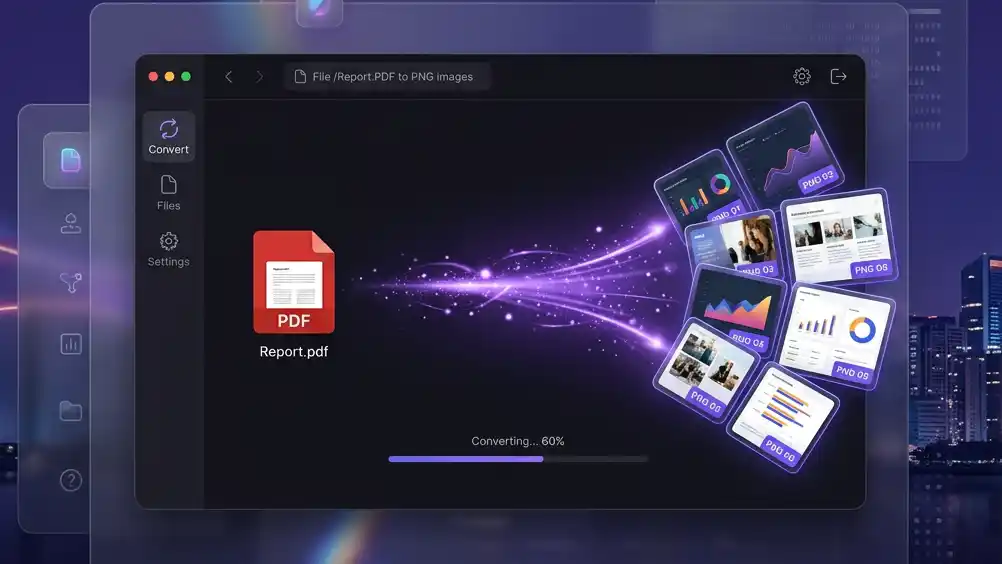
RajeshPDFtoPNG was built to eliminate that friction entirely. It’s a single Windows executable that converts PDF pages to high-resolution PNG images — and it works two ways: double-click for a polished GUI, or pass flags in a terminal for headless, scriptable conversion. Same EXE, no context-switching.
✨ What Makes It Different
One Binary, Two Personalities
Most PDF tools force you to choose: install a GUI app or learn a command-line library. RajeshPDFtoPNG ships as one .exe that detects how you launched it. No arguments? You get a full Windows Forms interface with drag-and-drop, progress bars, and a live log. Pass an option flag like -d 600? It silently converts in your terminal and exits with a clean status code.
This dual-mode design means designers and developers on the same team can use the exact same tool — no separate installs, no version drift.
Truly Zero Dependencies for Rendering
Under the hood, conversion is powered by the Windows.Data.Pdf runtime API — the same engine Windows itself uses to render PDF thumbnails in Explorer. There’s no bundled Ghostscript, no Poppler DLL, no JRE. If you’re on Windows 10 (build 19041+) or Windows 11, the rendering engine is already on your machine.
The self-contained build takes this a step further: it bundles the .NET runtime so the recipient doesn’t even need the framework installed. One file, no prerequisites, nothing to configure.
Pixel-Perfect Control
Choose from five DPI presets — 72 for quick previews, 150 or 200 for web use, 300 for print-quality, or 600 when every pixel counts. Pair that with page-range selection (1, 3, 5-8 or just leave it blank for all pages), and you get exactly the images you need with no waste.
Output filenames follow a predictable convention:
report_p1_300dpi.png
report_p2_300dpi.png
— making them trivial to sort, glob, or feed into downstream scripts.
🖥️ The GUI Experience
Launch the app with a double-click and you’re greeted by a clean, dark-themed interface (with a one-click light-mode toggle ☀/☾).
The workflow is three steps:
- Drop a PDF onto the dashed drop zone — or click to browse.
- Pick your settings: DPI, page range, and output folder.
- Hit ⚡ Convert to PNG and watch the progress bar fill in real time.
Need to bail mid-conversion? The button flips to ⛔ Stop instantly. When it’s done, an 📂 Open Output Folder button appears so you can jump straight to your images.
The interface is responsive, the log is scrollable, and every control updates live — no frozen windows, no mystery spinners.
💻 The CLI Experience
Power users and automation pipelines get first-class support. Any option flag switches the EXE into headless mode:
:: Convert every page at 300 DPI into the PDF's own folder
RajeshPDFtoPNG.exe report.pdf

:: Pages 1–5 at 600 DPI into a specific directory
RajeshPDFtoPNG.exe report.pdf -d 600 -p 1-5 -o C:\out

:: Cherry-pick individual pages
RajeshPDFtoPNG.exe report.pdf -p 1,3,7| Option | Description | Default |
|---|---|---|
-o, --out <folder> | Output folder | PDF’s folder |
-d, --dpi <number> | Resolution in DPI | 300 |
-p, --pages <spec> | Pages, e.g. 1,3,5-8 | All pages |
-h, --help | Show help and exit | |
--version | Show version and exit |
Exit codes are well-defined (0 success, 1 error, 2 bad arguments, 130 Ctrl+C cancelled), so you can chain it into CI/CD pipelines, batch scripts, or PowerShell workflows with confidence.
📦 Two Ways to Ship It
| Variant | What Ships | Needs .NET? | Best For |
|---|---|---|---|
| Normal | Tiny EXE (~KB) | Yes — .NET Framework 4.8 (pre-installed on Win 10/11) | Internal teams, small footprint |
| Self-Contained | Single larger EXE | No | Client handoff, kiosks, machines you don’t control |
Both variants are built with a single build.bat script and packaged into ready-to-distribute .zip files automatically.
🔧 Under the Hood
The architecture is deliberately simple and maintainable:
| File | Responsibility |
|---|---|
| Program.cs | Entry point — detects GUI vs. CLI and dispatches accordingly |
| MainForm.cs | The complete Windows Forms GUI with theming, drag-and-drop, and async conversion |
| PdfConverter.cs | The shared, UI-agnostic conversion core used by both modes |
| ConsoleHelper.cs | Attaches a console to the GUI-subsystem process for clean CLI output |
The conversion core (PdfConverter) is fully decoupled from the UI. It accepts an options object, a logging callback, an IProgress<T> reporter, and a CancellationToken. This means the same rendering path runs whether you’re clicking buttons or piping output to a log file — no code duplication, no divergent behaviour.
🚀 Get Started
- Download the latest release from Google Drive.
- Unzip and double-click
RajeshPDFtoPNG.exe— that’s it. - For scripting, add the folder to your
PATHand call it from any terminal.
No installer, no admin rights, no runtime downloads (with the self-contained build). Just a single EXE that does one thing exceptionally well: turn PDFs into pristine PNGs.
RajeshPDFtoPNG is open-source and built with ❤️ for anyone who’s tired of over-engineered PDF tools. Star the repo, file issues, or send a PR — contributions are always welcome.
Leave a Reply
You must be logged in to post a comment.